🎒The Dell XPS 14 (2026) only has three Thunderbolt 4 ports and a headphone jack, so accessories matter. Here's what actually works well based on how you'll use it.
If You're Setting Up a Desk
You probably want a dock. Plugging in one cable to connect your monitor, keyboard, mouse, and charge the laptop is genuinely life-changing.
My recommendation: Dell WD22TB4 (~$280)
It's Dell's official Thunderbolt 4 dock. You get multiple USB ports, Ethernet, DisplayPort, HDMI, SD card, and 90W charging. Most importantly, it just works with the XPS 14 without the compatibility weirdness you sometimes get with third-party docks.
If you want more ports and don't mind spending more, the CalDigit TS4 (~$400) is the enthusiast choice. 18 ports total, excellent build quality, and it works great with pretty much everything.
On a budget? The Anker 777 (~$200) does the job for most people.
Chargers for Travel
The included charger works, but it's not exactly compact. For travel, grab a GaN charger:
- Dell DA100PM220: 100W, official Dell option (~$80)
- Anker 735: 65W, very small (~$50)
Any USB-C Power Delivery charger 60W or higher will charge the XPS 14. Just avoid the no-name Amazon brands.
External Monitors
The XPS 14 can drive up to three 4K displays through a dock. For a single monitor with one-cable setup (display + charging), look for monitors with USB-C input:
Good options:
- Dell UltraSharp U2723QE
- LG 27UK850
- ASUS ProArt PA279CV
These connect with a single USB-C cable and charge the laptop while displaying.
Cases and Sleeves
The XPS 14 is thin (14.6mm) and light (3 lbs). Any 14-14.5 inch sleeve works:
- Dell Premier Sleeve: Made specifically for XPS, looks sharp
- Tomtoc 360: Good protection, reasonable price
- Incase Compact: Slim and professional
Keyboard and Mouse
If you're docking at a desk, you'll want real peripherals.
The Logitech MX Keys + MX Master 3S combo is hard to beat. They're wireless, work with multiple devices, and feel premium. Connect via Bluetooth or the included USB receiver (you'll need the USB-A port on your dock or a dongle).
Travel Hub
Don't want to carry a full dock? A compact USB-C hub adds the ports you need in a pocket-sized package.
The Anker 7-in-1 gives you HDMI, USB-A ports, and an SD card reader for ~$35. Good enough for conference room presentations and occasional external device connections.
Storage
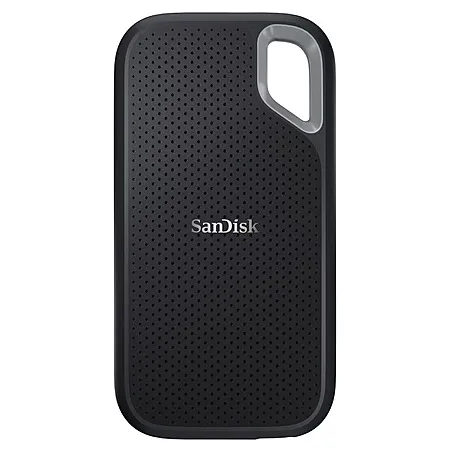
For fast external storage, the Samsung T7 Shield is the go-to. Fast, rugged, reasonably priced. If you need absolute maximum speed and have money to burn, Thunderbolt SSDs like the Samsung X5 are 3x faster but also 3x the price.
What Not to Buy
- Cheap USB-C cables (cause weird disconnection issues)
- USB 2.0 hubs (too slow for anything useful)
- Non-USB-PD "laptop chargers" (won't work)
- Unknown brand Thunderbolt docks (compatibility lottery)
My Actual Recommendation
For most people: Get a dock (WD22TB4 or similar), a good monitor, and a compact GaN charger for travel. That setup covers 90% of use cases and makes the XPS 14's limited port situation completely manageable.
We may earn a commission when you buy through these links, at no extra cost to you. How ShopSavvy makes money
How we researched this
Where this comes from: this answer draws on the product's published specifications and the reviews ShopSavvy collected for it, alongside prices from ShopSavvy's price data.
 Download ShopSavvy App
Compare prices across tens of thousands of stores, set price alerts, watch for deals by keyword, and much more.
 Install ShopSavvy Browser Extension
Compare and track prices automatically while you shop online at thousands of websites.
More Answers
If you're still curious about the , here are some other answers you might find interesting:
- Is the Dell XPS 14 (2026) good for programming and software development?
Yes, the Dell XPS 14 (2026) is an excellent choice for programming and software development across most specialties. Development Performance: | Task |...
- Is the Dell XPS 14 (2026) good for video editing?
Yes, the Dell XPS 14 (2026) handles video editing well, though performance depends on configuration and project demands. Configuration Requirements: |...
- Is the trackpad on the Dell XPS 14 (2026) good?
Yes, the trackpad on the Dell XPS 14 (2026) is considered one of the best on any Windows laptop—a significant improvement over previous models. Key...
- What are the different configurations and prices for the Dell XPS 14 (2026)?
The Dell XPS 14 (2026) offers multiple configurations at varying price points. Here's a comprehensive guide: Configuration Overview: | Tier | CPU | RAM |...
- How does the Dell XPS 14 (2026) compare to the MacBook Pro?
The Dell XPS 14 (2026) is frequently described as the closest Windows alternative to MacBook Pro. Here's a detailed comparison: Quick Comparison: | Aspect |...
- How good are the speakers on the Dell XPS 14 (2026)?
The Dell XPS 14 (2026) has impressively capable speakers, exceeding typical ultrabook audio standards. Speaker Configuration: Design: Quad-speaker system...
- How much does the Dell XPS 14 (2026) weigh?
The Dell XPS 14 (2026) is impressively portable—the slimmest XPS 14 Dell has ever made. Weight: OLED Model: 3.00 lbs (1.36 kg) IPS Model: 3.05 lbs (1.38 kg)...
- How good is the webcam on the Dell XPS 14 (2026)?
The Dell XPS 14 (2026) has an excellent webcam—a significant upgrade from previous Dell laptops that often required external cameras for acceptable video call...
- How loud are the fans on the Dell XPS 14 (2026)?
The Dell XPS 14 (2026) features a substantially redesigned cooling system that's both quieter and more effective than previous generations. Cooling System...
- Can I upgrade the RAM or SSD in the Dell XPS 14 (2026)?
The Dell XPS 14 (2026) offers mixed upgradeability. Here's the complete breakdown: RAM: Not Upgradeable ❌ Soldered LPDDR5X memory Choose at purchase: 16GB,...