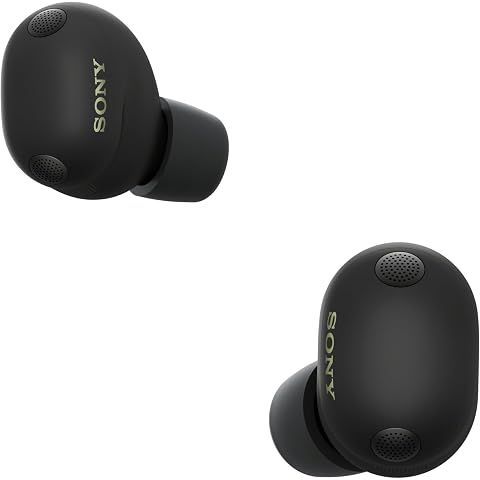
Getting multipoint set up on the Sony WF-1000XM6 is pretty straightforward—you just need the Sony Sound Connect app to do it.
Here's the quick version:
- Download the Sony Sound Connect app (free on iOS and Android)
- Open it with your earbuds connected
- Go to System settings
- Find "Connect to 2 devices simultaneously" and flip it on
- Pair your second device through its Bluetooth settings like normal
Once it's working, you can be listening to music on your laptop and when your phone rings, the earbuds switch automatically to take the call. No messing around with disconnecting from one device to connect to another. When you hang up, it switches back. Pretty seamless.
There are a couple things to know though:
You can only have two devices connected at once. Your earbuds remember more paired devices, but if you try to connect a third while two are already hooked up, one of them gets kicked. It's usually whichever one wasn't playing audio most recently.
This kills LDAC. Here's the trade-off nobody talks about at first: when multipoint is on, you lose the high-res LDAC codec. Both connections drop down to AAC or SBC instead. For most people that's fine, but if you're an audiophile who actually notices the difference, you might want to disable multipoint when you're doing serious listening.
For day-to-day use though? Having both your phone and laptop connected simultaneously is genuinely useful.
We may earn a commission when you buy through these links, at no extra cost to you. How ShopSavvy makes money
How we researched this
Where this comes from: this answer draws on the product's published specifications and the reviews ShopSavvy collected for it, alongside prices from 1 retailer in ShopSavvy's price data, most recently seen Mar 18, 2026.
📚More About Sony WF-1000XM6 Earbuds
Considering the Sony WF-1000XM6 Earbuds?
Here's our "TLDR" Review
 Download ShopSavvy App
Compare prices across tens of thousands of stores, set price alerts, watch for deals by keyword, and much more.
 Install ShopSavvy Browser Extension
Compare and track prices automatically while you shop online at thousands of websites.
More Answers
If you're still curious about the Sony WF-1000XM6 Earbuds, here are some other answers you might find interesting:
- What is Quick Attention mode on the Sony WF-1000XM6?
Quick Attention is one of those Sony WF-1000XM6 features you don't think you need until you use it—then you wonder how you lived without it. Place your finger...
- How do I know which ear tip size is right for my Sony WF-1000XM6?
Getting the right ear tip size for your Sony WF-1000XM6 seems simple, but it makes a huge difference. Wrong size = weak bass, bad ANC, and earbuds that feel...
- Can I use the Sony WF-1000XM6 with Samsung TV?
Good news: yes, you can pair your Sony WF-1000XM6 with your Samsung TV. Not-so-good news: it's not the seamless experience you might hope for. Pretty...
- Why does my Sony WF-1000XM6 show a poor seal in the app?
That "poor seal" warning in the app? One of the most common complaints about the Sony WF-1000XM6. And one of the most fixable. Here's the thing: the seal...
- What's the difference between LC3 and LDAC codecs on the Sony WF-1000XM6?
Two codecs, two completely different jobs on your Sony WF-1000XM6. Here's when to use which. LDAC is Sony's baby—a high-resolution codec that can push up to...
- Does the Sony WF-1000XM6 have LE Audio support?
Short answer: yes, the Sony WF-1000XM6 supports LE Audio. And it's actually kind of a big deal if you care about gaming or video. Traditional Bluetooth has...
- Can I replace just one Sony WF-1000XM6 earbud if I lose it?
Lost one WF-1000XM6 earbud? Dropped one down a drain? Dog got to it? I feel your pain. The good news: you don't have to buy a whole new set. Call Sony Support...
- Why does the Sony WF-1000XM6 use Bluetooth 5.3 instead of Bluetooth 6?
I've seen this complaint pop up a lot: "Why doesn't the $330 WF-1000XM6 have the latest Bluetooth 6?" Fair question. Let me explain why it's not actually a big...
- What is the difference between 360 Reality Audio and 360 Upmix on the Sony WF-1000XM6?
Sony gives you two ways to get spatial audio on the WF-1000XM6, and they work completely differently. Let me clear up the confusion. This is actual 3D audio,...
- How does the Adaptive NC Optimizer work on the Sony WF-1000XM6?
Ever wonder why your noise cancellation sometimes feels incredible and other times just... okay? That's exactly the problem the Adaptive NC Optimizer is...