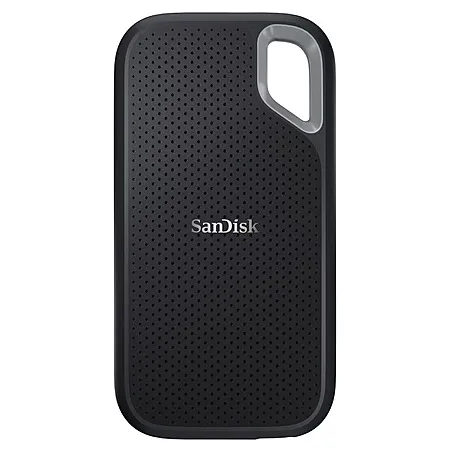
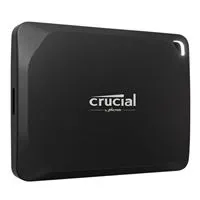
With only two Thunderbolt 4 ports, a docking station is essential for most XPS 13 Plus users wanting full desktop connectivity.
USB-C adapters from Anker, Ugreen, Amazon Basics provide basic HDMI, USB-A, and SD expansion.
| Factor | Recommendation | |--------|----------------| | Power delivery | 90W+ for charging under load | | Display support | Verify 4K @ 60Hz | | Interface | Thunderbolt 4 for best performance | | Compatibility | Dell docks work best with XPS |
Where this comes from: This answer is based on ShopSavvy's product database, real-time pricing from thousands of retailers, and a look at hundreds of user reviews to give you a well-rounded picture.
Here's our "TLDR" Review
Download ShopSavvy AppCompare prices for anything in real-time, set price alerts, watch for deals by keyword, and much more
Install ShopSavvy Browser ExtensionCompare and track prices automatically while you shop online at thousands of websites.
If you're still curious about the , here are some other answers you might find interesting:
The Dell XPS 13 Plus OLED display delivers exceptional color accuracy that rivals professional monitors—outstanding for creative work straight out of the box.
| Metric | Value | Interpretation | |--------|-------|----------------| | Average Delta-E | 0.21 | Near perfect | | Minimum Delta-E | 0.18 | Exceptional | | Maximum Delta-E | 2.20 | Still excellent |
Delta-E measures difference between displayed and reference colors. Scores below 1.0 are professional-grade—the XPS achieves 0.21, meaning differences are imperceptible to the human eye.
| Color Space | Coverage | Use Case | |-------------|----------|----------| | sRGB | 100% | Web, general content | | DCI-P3 | 100% | Cinema, modern devices | | Adobe RGB | 96% | Print photography | | NTSC | 94% | Broadcast |
| Display | Color Accuracy | Notes | |---------|----------------|-------| | XPS 13 Plus OLED | Delta-E 0.21 | Professional-grade | | MacBook Air M2 | Delta-E ~0.5 | Very good | | Most laptop LCDs | Delta-E 2-4 | Consumer-grade | | Pro monitors (BenQ SW) | Delta-E ~0.3 | Similar |
For most users, factory calibration is excellent. Professional photographers doing critical print work may benefit from hardware calibration (X-Rite, Datacolor SpyderX), but it's not necessary for most workflows.
The Dell XPS 13 Plus OLED is excellent for photo editing and capable for moderate video editing. Here's what creative professionals should know.
| Task | Performance | |------|-------------| | 1080p editing | Smooth | | 4K editing | Requires proxies | | Short-form content | Good | | Long-form/effects | Limited | | Rendering | Slower than discrete GPU |
Ideal for:
Consider alternatives if:
For creative work, choose the OLED model despite lower battery life. The color accuracy is genuinely professional-grade.
Yes, the Dell XPS 13 Plus supports external monitors through its Thunderbolt 4 ports, including multi-monitor setups.
| Configuration | Support | |---------------|---------| | Single 4K @ 60Hz | ✓ | | Single 4K @ 120Hz | ✓ | | Dual 4K @ 60Hz | ✓ (via dock/MST) | | Single 5K @ 60Hz | ✓ | | Single 8K @ 30Hz | ✓ | | Triple+ monitors | ✓ (requires dock) |
| Dock | Displays | Charging | Price Range | |------|----------|----------|-------------| | Dell WD22TB4 | Dual 4K | 130W | ~ | | CalDigit TS4 | Dual 4K | 98W | ~ | | Plugable TBT4-UD5 | Dual 4K | 96W | ~ |
The Dell XPS 13 Plus has a controversial power button placement that frustrates many users. The fingerprint reader/power button sits directly to the right of the Backspace key with no gap or physical distinction.
A brief press triggers sleep mode:
Change power button behavior in Windows:
| Approach | Effectiveness | |----------|---------------| | Disable power button action | Eliminates accidental sleeps | | Build muscle memory | Works for some (takes weeks) | | External keyboard | Best for extended typing | | Keyboard shortcuts for shutdown | Alt+F4, Start menu |
Dell prioritized seamless aesthetics. The integrated fingerprint reader adds Windows Hello convenience, but the ergonomic compromise is significant for heavy typists.
If you type extensively, test this keyboard before buying. Some users adapt; others find it permanently frustrating.
The Dell XPS 13 Plus can run warm to hot during intensive tasks—a trade-off of its ultra-thin design and powerful 28-watt P-series processor.
| Workload | Temperature | Fan Noise | |----------|-------------|-----------| | Light (browsing, docs) | Cool | Silent | | Moderate (apps, video calls) | Warm | Audible, quiet | | Heavy (rendering, compiling) | Hot | Active, noticeable | | Ultra mode | Maximum | Aggressive |
The XPS 13 Plus uses dual fans with improved airflow over previous generations. The design prioritizes:
For typical ultrabook workloads, thermal management is comparable to similar thin laptops. Users planning sustained heavy workloads (video encoding, 3D rendering) may want thicker laptops with better cooling.
The XPS 13 Plus prioritizes portability over sustained maximum performance.
The Dell XPS 13 Plus features an innovative invisible haptic touchpad that blends seamlessly into the palm rest. While visually striking, it has received mixed reviews for reliability.
Instead of a mechanical clicking mechanism, piezoelectric actuators create vibration that simulates a click sensation. The entire palm rest functions as the touchpad—there are no visible boundaries.
Some users experience:
| Solution | Effectiveness | |----------|---------------| | Firmware update (2023.12.13.946+) | Improves reliability significantly | | BIOS update | Essential for compatibility | | Sensitivity adjustment | Helps some users | | Hardware replacement | Required for persistent issues |
The touchpad works well for many users, but others experience persistent issues requiring palmrest replacement. If coming from a traditional trackpad, expect an adjustment period.
Recommendation: Test thoroughly during your return window. Consider keeping an external mouse for precision work.
WiFi connectivity issues have been a documented concern for some Dell XPS 13 Plus users. Here's what you should know.
The XPS 13 Plus uses a Killer Wi-Fi 6E (AX1675) adapter, soldered to the motherboard (not replaceable). It supports WiFi 6E, Bluetooth 5.2, and speeds up to 2.4Gbps.
Users have documented several problems:
Issues may stem from:
Dell has released multiple BIOS and driver updates that significantly improve reliability. Many users report much better performance after updating. However, not all problems are resolved for everyone.
Test WiFi thoroughly during your return window. Consider keeping a USB WiFi adapter as backup if reliable connectivity is critical.
These premium ultraportables compete at similar prices but excel in different areas. Here's how they compare.
| Benchmark | XPS 13 Plus (i7) | MacBook Air M2 | Winner | |-----------|------------------|----------------|--------| | Multi-core (Geekbench 5) | ~10,293 | ~8,952 | XPS (plugged in) | | Single-core (Geekbench 5) | ~1,700 | ~1,932 | MacBook | | Video transcoding | Slower | Faster | MacBook | | Adobe apps | Good | Better | MacBook |
Critical note: XPS 13 Plus only matches M2 performance when connected to power. On battery, the M2 significantly outperforms.
| Model | Battery Life | |-------|--------------| | MacBook Air M2 | 14+ hours | | XPS 13 Plus LCD | 10-13 hours | | XPS 13 Plus OLED | 7-8 hours |
Winner: MacBook Air M2 (significantly)
| Specification | XPS 13 Plus OLED | MacBook Air M2 | |---------------|------------------|----------------| | Color gamut | 100% DCI-P3 | 100% P3 | | Contrast | Infinite (OLED) | 1,000,000:1 | | Touch | Yes | No | | Resolution | 3456 × 2160 | 2560 × 1664 |
Winner: XPS 13 Plus OLED (for creative work)
Winner: MacBook Air M2
Choose Dell XPS 13 Plus: Windows requirement, best display for creative work, futuristic design preference
Choose MacBook Air M2: Battery life priority, macOS preference, consistent unplugged performance, video/Adobe work
The capacitive touch function row on the Dell XPS 13 Plus is one of the laptop's most controversial features. Here's what you need to know about its reliability and real-world usability.
Dell replaced physical F1-F12 keys with a touch-sensitive LED strip. Press the Fn key to toggle between function keys and media controls, or lock your preferred mode with Fn + Escape.
The touch row also includes traditionally physical keys: Escape, Delete, Home, End, Print Screen, and Insert.
Dell has acknowledged several problems:
BIOS updates have addressed many issues:
Beyond reliability, the fundamental design presents challenges:
This design may frustrate:
Recommendation: Test in person before purchasing if possible. Update BIOS immediately on any new unit.
The Dell XPS 13 Plus display choice involves significant trade-offs between visual quality, battery life, and price. Here's what you need to know.
| Specification | Value | |---------------|-------| | Resolution | 3456 × 2160 | | Contrast ratio | 100,000:1 (infinite blacks) | | Color gamut | 100% DCI-P3, 100% sRGB, 96% Adobe RGB | | Color accuracy | Delta-E ~0.21 (near perfect) | | Brightness | 400 nits | | Touch | Yes | | Battery life | ~7-8 hours |
Best for: Photo/video editors, content creators, anyone prioritizing visual quality over battery life.
Choose OLED if: You work with photos, video, or color-critical content, and don't mind keeping the charger accessible.
Choose LCD if: Battery life is important, you work in bright environments, or your focus is productivity over media consumption.
Loading trending deals...
Get the latest news, and updates on ShopSavvy. You'll be glad you did!